


Step-by-Step Guide
- Log in to your phpMyAdmin interface using your root credentials. The default username for local installations like XAMPP is often "root" with a blank password.
- From the main page, click on the User accounts tab. If you do not see this tab, your current user does not have sufficient privileges to manage users.
- Click the Add user account link near the bottom of the page.
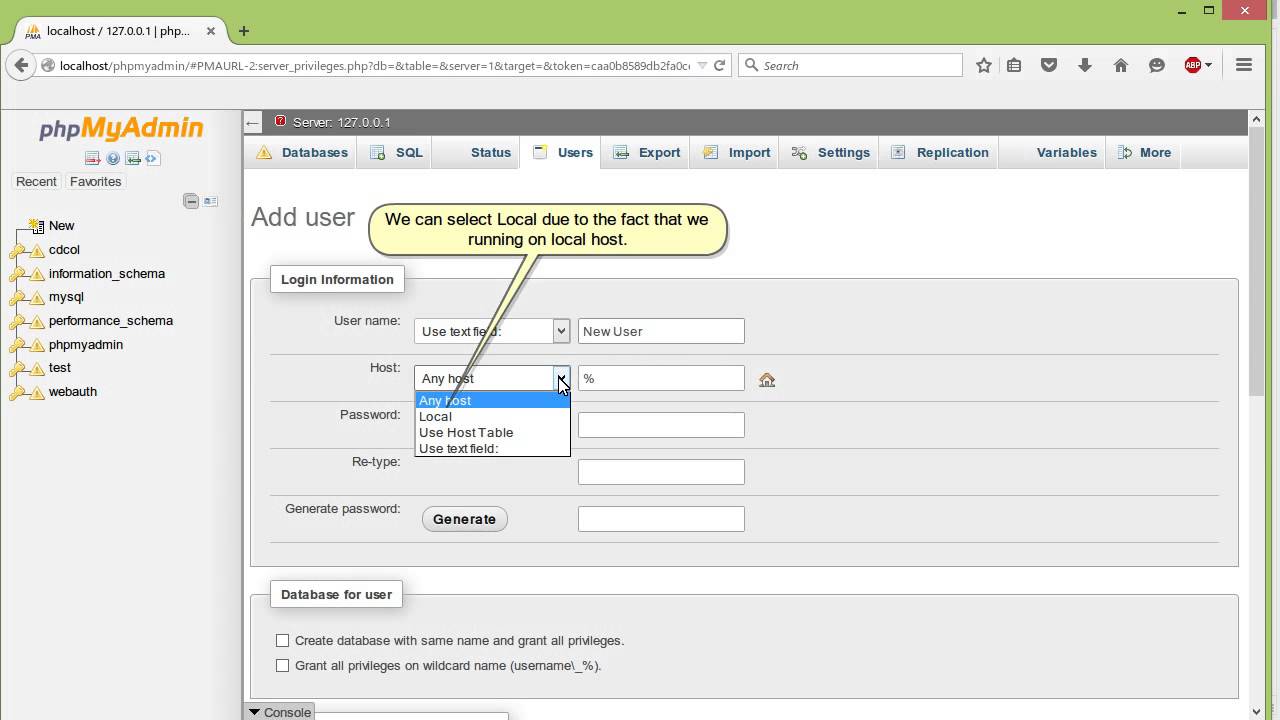
- Fill in the login information:
- User name: Enter the desired username.
- Host name: Select "Local" for
localhostaccess only, or "Any host" (%) if the user needs to connect from different locations (use caution with "Any host" for security reasons). - Password: Enter a strong password. You can also use the Generate button to create a strong, random password.
- Configure global privileges: It is generally recommended not to assign global privileges (other than
USAGE) unless you know exactly what you are doing. For specific database access, leave this section blank for now. - Create a database for the user (optional): You can check the box to "Create database with same name and grant all privileges" if you want a dedicated database for this user.
- Click the Go button at the bottom of the page to create the user.
Assigning Database-Specific Privileges
After creating the user, you can assign permissions for specific databases:
- Go back to the User accounts page.
- Click the Edit privileges icon (pencil) next to the newly created user's name.
- Under the Database-specific privileges section, select the desired database from the Add privileges on the following database dropdown.
- On the next screen, check the boxes for the privileges you want to grant (e.g.,
SELECT,INSERT,UPDATE,DELETE,CREATE) and click Go.
Your new user is now ready to use, with access limited to the specified database(s). You can log out and test the new user login to verify their access.